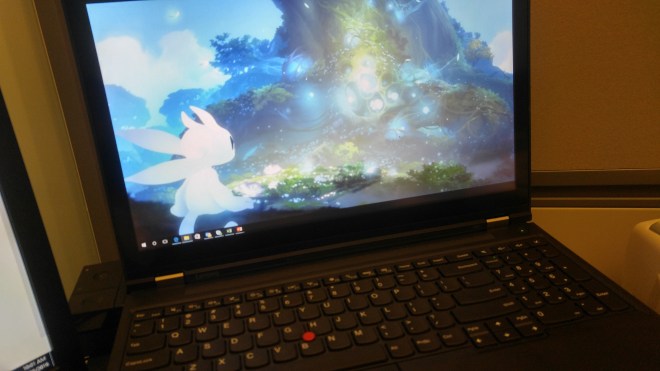
Lenovo Thinkpad P50

20160825_100128_HDR.jpg

괴물이 왔다…

회사 노트북 교체주기가 반년이나 지난 시점에 (일전에 언급했던 전직원 노트북 교체 코메디로 인해 전직원이 교체주기가 같아지는 문제로 미뤄미뤄짐) 어찌되었던 교체하게 되어 얄쌍한 Surface Book과 일반 노트북을 놓고 고민하다가 지난번과 매한가지로 팀에서 유일하게 힘좋은 PC로 가는 선택을 감행하여 만난 Thiankpad P50

잘 보니 Product Description에 Mobile Workstation이라고 나오더니 왜그런줄 알겠다….절대 노트북이 아니라 Workstation이다…. 물론 힘(CPU, 메모리)은 좋은데엄청 크고 무겁고 (팔 아픔 T_T) ..

사용한지 2 주일만에 사무실에 놓고다니는 모드로..

New monster in the house..after waiting and waiting for months.. Now I understand why this is not a notebook but a mobile workstation.. 🙂  Great processing power (i7 2.7GHz and 64G memory)…kind of slim but ultra heavy 🙂

2016.8


Bye Thinkpad X220, Hello Thinkpad X230

TP X220

With company’s campaign to deploy Windows 8, had to say goodbye to “not-that-old” laptop. My TP X220

Only has been 16 months, but brought good memories of using Thinkpad….(Well this one was not that great though had some issues with TPM chip, part of my fault but display was unstable)

Anyhow, among various options of new devices, I made a bold movement to stay with extension of current one X230 not any touch enabled devices because of CPU & Memory specifications.

WP_20130410_001


X230 is not technically different than X220 similar processor  (upgraded) with all other same form factors while the upgrade is obviously in keyboard. Finally, Thinkpad is moving away from “easily pullable” butons and keyboad has some nice features like light up from keyboard (by Fn+ Space).


The challenge for me is adjusting on change of keyboard layouts. By moving the power button to right, the new keyboard gave up 2 lines of keys for Function line keys (forced to single line)

*  pageup/down button moved down to arrow button

* Home End Insert Delete button location has changed -driving me crazy 🙂


2013.4


DIY 2: Laptop Fan Replacement

얼마전부터 나의 미국생활과 함께 시작되었던 유구한 연을 가진 우리 Thiankpad T42가 캥캥거리기 시작했다..

좀 켜놨다 싶으면 탱크 굴러가는 소리도 내고 가끔은 Fan Error로 Booting도 안되고…그럴 때마다 순간 맞바람을 불어주고 먼지좀 대신 먹어주는 인공호흡을 하며 연명하다가 결국 Fan을 갈았다..아 절라 비쌉니다..대략 ebay에서 60불…거의 이건 뭐 대략 싸구려 이동식 에어콘값이구만…T_T

옆 컴퓨터 창에 Hardware Material Mannual을 띄어 놓고 조이고 풀고 해서, Battery>Keyboard>외장판 다 떼고… 마지막으로 팬을 떼어네 이 Laptop쓴지 4년 반만에 최초로 CPU와 대면식도 해주셨다…^^;

에휴… 사실 작년 초에 Warranty 3년 expire되기전에 나름 때마침 망가져주신 Lan Adaptor 갈고, CD도 갈고, Keyboard도 갈았건만.. 이젠 Warranty도 없어서 결국 DIY해주셨다.. (Keyboard는 아들님이 새 Keyboard 장착 후 한달도 안되 뽑아주셔서 왼쪽 Ctrl 키가 없는 장애 Keyboard로 버티고 있다..)

2009.11